

Introduction
Geospatial data is everywhere. Mapping directions, tracking a package, and reading a weather report are all examples of how we use geospatial data in our daily lives. In recent years, the nature of geospatial data has changed. Data is generated from different sources, such as technologies like IoT, drones, and autonomous vehicles, as well as from individuals and social networks. This data is also very large. This presents a number of challenges for developers that are not easy to solve with traditional databases. Accessing, moving, modifying, and storing this data is very complicated.
In June 2018, Profiq published a blog post about Kinetica's high-performance analytics database. In this article, the first in a series of four, I'm going to take it from there and dive deeper into Kinetica's capabilities by showing you how to store large amounts of streaming geospatial data from Meetup.com into Kinetica's GPU-accelerated database using Kinetica's Python API. Meetup is a well-known platform for organizing in-person events for people with similar interests. It is used globally by millions of people. Every minute, users send hundreds of responses to invitations (RSVPs). The service provides an API to access all of these actions.
Future articles in the series will focus on visualizing the data, using APIs for creating custom apps, training, and using simple prediction models. All of the code is available in public repositories. Now, without further ado, let's get to work.
Installing and running Kinetica
The easiest way to install Kinetica's database engine is to use Docker. Two variants are available on the Docker Hub. The kinetica/kinetica-intel image contains a version that is executable on standard CPUs. kinetica/cuda-91 requires the nvidia-docker runtime and uses CUDA to accelerate many database operations on an NVIDIA GPU. I've used the CPU version for this application, as the server doesn't have a GPU installed.
The Kinetica Active Analytics Platform is designed to utilize your server resources as efficiently as possible. It automatically determines whether a query should be executed on a CPU or on a GPU. Depending on the queries you run, the database performs well even on a CPU-only server, so there is no need to upgrade your infrastructure. However, if you are processing a lot of data or would like to see great improvements in speed, I'd recommend deploying it on a system with CUDA GPU.
I prepared a modified image which automatically registers a product key from an environment variable,
imports a demo Reveal dashboard (more about Reveal in future articles), and starts the database engine
with the container. By default, only the database manager starts. You need to start the engine itself
from the web interface or by executing a specific command in a terminal. If you are running the
database on your local machine, I also recommend limiting available memory, either by setting the
container's memory limit (such as
--memory=6g), or by modifying the database
configuration.
Let's start by cloning our GIT repository:
git clone git@github.com:profiq/meetup-analysis-kinetica.git
If you have
docker-compose
installed, paste your product key (you can start a free trial and get one
here) into the
docker-compose.yml
file and start the container:
docker-compose up -d kinetica
We limited the amount of memory the container can use to 4GB. You can modify this setting by changing
the value of the
mem_limit
attribute in
docker-compose.yml. Please also keep in mind that the size of Kinetica's Docker image is around 5GB.
After you start the container, you can check the web interface for database management running on
http://localhost:8080. The default username and password is
admin.
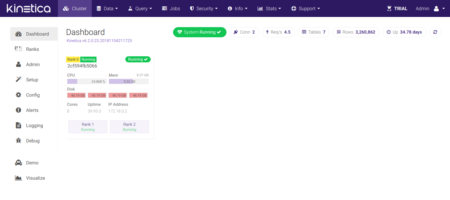
If you do not specify the container name, run:
docker-compose up -d
You will also start a second container running a Python script that creates the required database tables and starts collecting data from the Meetup.com API. Let's have a look at the first of these two tasks.
Creating database tables
We want our application to store information about responses to Meetup events. For each response we need the following:
- The unique ID of the event
- The name of the event
- The event page URL
- The time of the event
- The event location: latitude, longitude, and city name
- The unique ID of the response
- The time of the response
- Whether the response was positive or negative
- The city and country where the event is taking place
- The number of Meetup group members and number of previous events
You could define a table with all of these columns using the web interface mentioned above. Since we want to have everything automated, we decided to write a Python script to create the table for us.
We used Kinetica's
Python API
to communicate with the database. Python scripts are executed inside the
python
container which is also part of our repository. Creation of required tables is handled by the
src/deploy.py
script. Let's have a look at the most important parts of the code:
To initiate a connection, run:
db = gpudb.GPUdb(host=config.GPUDB_HOST, port=config.GPUDB_PORT)
For this project, we didn't activate user authentication, which is the database's default state. For real-world setups, this option can be enabled in the database configuration.
After the connection opens, we can create a table for storing RSVPs from Meetup.com:
gpudb.GPUdbTable(
_type=config.EVENT_RSVP_TYPE,
db=db,
name=config.EVENT_RSVP_TABLE_NAME,
options={'collection_name': config.EVENT_RSVP_COLLECTION}
)
The table definition provided as the
_type
argument can be found in
meetupmap/config.py:
EVENT_RSVP_TYPE = [
['event_id', 'string', 'char32', 'primary_key', 'shard_key'],
['name', 'string', 'char128', 'text_search'],
['url', 'string', 'char256'],
['event_timestamp', 'long', 'nullable', 'timestamp'],
['lat', 'double', 'nullable'],
['lon', 'double', 'nullable'],
['rsvp_id', 'long', 'primary_key'],
['response', 'int', 'int8'],
['rsvp_timestamp', 'long', 'timestamp'],
['city', 'string', 'char64', 'nullable', 'text_search'],
['country', 'string', 'char4', 'nullable'],
['group_members', 'long', 'nullable'],
['group_events', 'int', 'nullable']
]
The definition is a simple list of lists in which each of the lower-level lists represents one column
of the table. The first element defines the column name, and the second determines the data type.
Other elements describe additional properties such as subtypes, index definitions, or the possibility
to store as null. For example, we defined a primary key consisting of
event_id
and
rsvp_id
columns and told the database to handle
event_timestamp
and
rsvp_timestamp
columns as timestamps. This lets us perform date-time operations on them, and when exploring the
table, the data displays in a human-readable date and time format.
We stored event coordinates in two columns of type
double. I
recommend naming these columns
lat and
lon. This
convention tells Reveal, Kinetica's visualization tool, to automatically mark the columns as
containing geospatial data.
This approach lets you store single points. But what if you need to work with more complex data; for
example, a path of an autonomous vehicle? You can save various types of shapes as
WKT strings
simply in a
string
column with the subtype set to
wkt.
Be careful when defining a database table. At the time of this writing, there were some settings you
can't just change later. These include primary/shard keys and certain data type changes. You can't,
for example, change a
string
column to
long.
When we created a table, we also provided an optional collection name. Collections are used to logically separate data for different projects stored in one database.
You can also notice the
try-except
block surrounding the table creation code. The
meetupmap/deploy.py
script is executed on every
python
container start, and we don't want to cause the container to stop the if the table already exists.
The file also contains a
add_db_column()
function which modifies the existing table by adding new column using the
alter_table()
method. Note that we replaced some variables with real parameter values in this example:
response = db.alter_table(
table_name=config.EVENT_RSVP_TABLE_NAME,
action='add_column',
value='city',
options={
'column_type': 'string',
'column_properties': 'char64,nullable,text_search'
})
We added
city, country, group_members,
and
group_events
columns. You might have noticed that they are already present in the table definition above. This was
not the case for some older instances of the database we had already running.
The alter_table()
method allowed us to modify the table without recreating the container and losing the data we already
collected. This is just one of many features provided by Kinetica's Python API. Check the official
documentation
and
tutorials
if you want to know more.
Processing RSVPs From Meetup.com
Let's start by having a look at the
main()
function inside the
meetupmap/meetup.py
file responsible for processing RSVPs from Meetup API:
db = gpudb.GPUdb(host=config.GPUDB_HOST,
port=config.GPUDB_PORT)
rsvp_queue = multiprocessing.Queue()
event_info_provider = apiutils.EventInfoProvider(db)

storer = threading.Thread(
target=store_rsvps,
kwargs={'db': db, 'queue': rsvp_queue,
'event_info_provider': event_info_provider})
storer.start()

websocket.enableTrace(False)
on_message = functools.partial(add_to_storing_queue,
queue=rsvp_queue)
ws = websocket.WebSocketApp(config.MEETUP_API_RSVP_ENDPOINT,
on_message=on_message)
ws.run_forever()
First, we opened a DB connection and created a
Queue for
storing RSVPs received from Meetup. The
EventInfoProvider
gives us additional information about the event that is not present in the RSVP received from the
stream. This includes city name, country, ISO code, number of group members, and number of previous
events organized by the same group.
Next, we created and started a thread to manage processing and storing the RSVPs. Finally, we started
to listen to the RSVPs stream provided by Meetup using websockets. The
websocket-client
library is used to handle the socket. The library calls the
add_to_storing_queue()
function every time a new RSVP arrives.
You are probably wondering why we're using a second thread to process data from the stream.
EventInfoProvider
often needs to call the Meetup API to receive the information it needs (it tries to find the
information in our database from previously stored RSVPs first). Meetup limits the number of calls to
30 in 10 seconds, so a short 0.35s sleep is added before each API call to comply. Because of this
pause, we aren't able to process all the RSVPs as they are read from the stream; the main thread just
puts them into a queue:
def add_to_storing_queue(_, rsvp_json, queue):
rsvp = json.loads(rsvp_json)
queue.put(rsvp)
print(' RSVP ID: %d in queue' % rsvp['rsvp_id'])
RSVPs are received as JSON strings. The function parses them and puts the resulting dictionary into a queue.
Now, on to the storing part:
def store_rsvps(db, queue, event_info_provider):
rsvp_record_bases = []
while True:
rsvp = queue.get()
rsvp_record_base = record_base_from_rsvp(rsvp)
rsvp_record_bases.append(rsvp_record_base)

if len(rsvp_record_bases) == 10:
event_ids =  for r in rsvp_record_bases]
event_info = event_info_provider.get_info(event_ids)
rsvp_records = add_event_info_to_record_bases(
event_info, rsvp_record_bases)
save_records_to_db(db, rsvp_records)
rsvp_record_bases = []
The function executed in a separate thread gets a RSVP from the queue and transforms it to a
OrderedDict
instance matching the table structure. This process is implemented by the
record_base_from_rsvp()
function:
def record_base_from_rsvp(rsvp):
rsvp_record = collections.OrderedDict()
rsvp_record['event_id'] = rsvp['event']['event_id']
rsvp_record['name'] = rsvp['event']['event_name']
rsvp_record['url'] = rsvp['event']['event_url']
rsvp_record['event_timestamp'] = rsvp['event']['time']
if 'time' in rsvp['event'] else None
rsvp_record['lat'] = rsvp['venue']['lat']
if 'venue' in rsvp else None
rsvp_record['lon'] = rsvp['venue']['lon']
if 'venue' in rsvp else None
rsvp_record['rsvp_id'] = rsvp['rsvp_id']
rsvp_record['response'] = 1 if rsvp['response'] == 'yes' else 0
rsvp_record['rsvp_timestamp'] = rsvp['mtime']
return rsvp_record
As mentioned earlier, we are still missing some data -
city, country, group_members, and
group_events. We wait until 10 RSVPs are collected and transformed, and then try to find the info using
EventInfoProvider
defined in
meetupmap/apiutils.py
for all RSVPs at once.
The Meetup API lets us request data about multiple events at once and we want to reduce the number of requests. The method returns a dictionary in which a unique is used as a key and the value assigned is a dictionary containing data about the event:
{
'123456': {
'city': 'London',
'country': 'uk',
'group_members': 1234,
'group_events': 56
},
'654321': {
...
}
To combine this additional event data with RSVPs, we use the
dict.update()
method provided by Python. If event info is not found, we simply leave the fields empty by setting
their values to
None.
def add_event_info_to_record_bases(event_info, rsvp_record_bases):
rsvp_records = []
for rsvp_base in rsvp_record_bases:
rsvp = rsvp_base.copy()
if rsvp['event_id'] in event_info:
rsvp.update(event_info])
else:
rsvp['city'] = rsvp['country'] =
rsvp['group_members'] = rsvp['group_events'] = None
rsvp_records.append(rsvp)
return rsvp_records
Finally, we inserted the records into the database table:
def save_records_to_db(db, rsvp_records):
dumped_records = [
json.dumps(r, ensure_ascii=False) for r in rsvp_records]
response = db.insert_records('event_rsvp', dumped_records,
list_encoding='json')

if response['status_info']['status'] == 'OK':
print(' Record inserted')
else:
print(' Error while storing')
print(response)
We serialized every record separately into a JSON string and then we called the
db.insert_records()
to store them. Notice the
ensure_ascii=False
parameter. By default,
json.dumps()
encodes all unicode characters. This behavior seems not to work well with the GPU-accelerated
database, and the strings received from the database seem to be damaged. Setting this parameter's
value to
False
solves the problem.
Conclusion
In this article, I showed you how to store large amounts of streaming geospatial data containing geospatial information into Kinetica's Active Analytics Platform using the Python API. The structure of the code might look familiar: open a connection, create a table with a specific structure, and then call a method for inserting new data. This approach is used by many other database libraries. If you already possess knowledge about some of these solutions, you will master Kinetica in no time.
You are, of course, not limited to using Python. Kinetica provides libraries for Java, C++, and Javascript as well as raw a REST API and an ODBC connector, which lets you manipulate your data using SQL.
In the next article, I will show you how the data we collected can be visualized using Reveal—a
powerful visualization
applicatievent_rsvpon
that is part of Kinetica's Active Analytics Platform.
Check out the other blogs in this series: